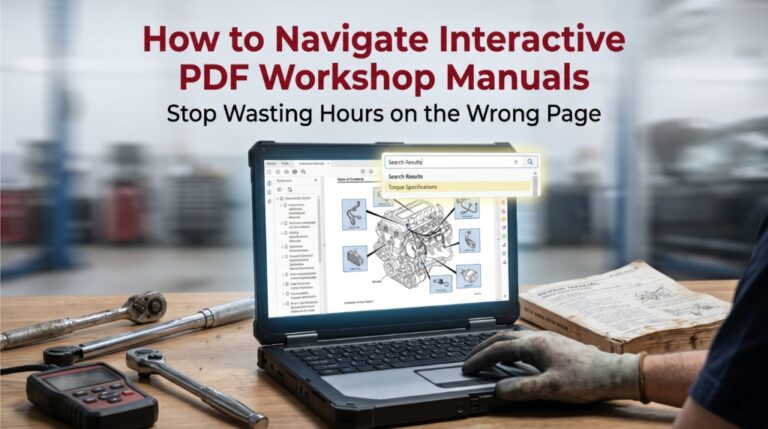
Most technicians lose critical repair time simply because they don’t know how to navigate interactive PDF workshop manuals with confidence. If you open a 22,000-page document and start scrolling, the job is already going wrong.
Mastering four built-in navigation tools in your PDF reader can reduce search time by over 60%. These features are standard in most interactive PDF workshop manuals. Efficient navigation utilizes embedded links, bookmarks, and search functions to quickly find technical data, view 3D models, or locate specific part numbers within massive documents.
This guide covers the exact steps to unlock bookmarks, hyperlinks, search functions, and clickable table of contents features so your manuals work for you, not against you.
How to Navigate Interactive PDF Workshop Manuals: The Skills Every Technician Needs Right Now

Most people download a PDF workshop manual and treat it like a digital paper book. That’s the real problem. Modern interactive workshop manuals are built with layered navigation systems that most users completely ignore.
This section breaks down each tool inside your interactive PDF, explains exactly how to activate it, and shows why each step matters in a real workshop setting. Follow these steps in order for maximum efficiency.
Step 1: Open the Bookmark Panel Before You Touch Anything
Before searching a single keyword, the bookmark panel is your command center. Skipping this step wastes minutes every single time you open a new manual.
Every professional-grade interactive PDF workshop manual includes a structured bookmark tree. This tree mirrors the manual’s chapter layout engine systems, electrical, suspension, transmission, and more. Clicking any bookmark jumps you directly to that section without scrolling.
How to activate the bookmark panel:
- In Adobe Acrobat or Adobe Reader: press F4 or click the bookmark icon on the left sidebar
- In Foxit PDF Reader: use the View menu, then select Navigation Panels > Bookmarks
- In PDF-XChange: click the Bookmarks tab in the left panel
- On mobile (iOS/Android): tap the grid icon and select Bookmarks
Once open, expand the top-level chapter headings to reveal sub-sections. A well-structured OEM workshop manual may show 8–12 main chapters, each with 20+ sub-entries. Learning to read this tree takes under five minutes and saves hours over a repair career.
Pro tip: Right-click any bookmark and select “Expand All” to see the complete structure at once. This gives you a full map of the manual before you begin any procedure.
Step 2: Use Ctrl+F Like a Diagnostic Tool, Not Just a Search Bar

The Ctrl+F search function inside an interactive PDF is not just a word finder, it’s a precision diagnostic tool when used correctly. Most technicians type one broad term and get frustrated by hundreds of results.
Press Ctrl+F (or Cmd+F on Mac) to open the search dialog. The real skill is in refining the query.
Search strategies that actually work in workshop manuals:
- Type exact part codes (e.g., “B2291” or “P0340”) to jump directly to diagnostic tables
- Search for torque specifications using unit terms like “Nm” or “ft-lbs” alongside the component name
- Use component location codes from the manual’s index table to jump to specific wiring diagram pages
- For electrical faults, search the connector reference number rather than the circuit name
Most PDF readers let you cycle through every result using the “Next” and “Previous” arrows inside the search bar. This is far faster than re-entering a search after checking each result.
If the manual is a scanned image-based PDF rather than a text-based one, Ctrl+F will not work. In that case, you must rely on the bookmark panel or the clickable table of contents for navigation.
Step 3: Activate and Use the Clickable Table of Contents
A clickable table of contents (TOC) inside a PDF workshop manual functions exactly like a website menu. Every entry is a live hyperlink, one click, instant page jump.
The TOC is usually found on the opening pages of the manual, formatted as a multi-level list. Unlike bookmarks, which live in the sidebar, the TOC is embedded in the document itself and gives you a visual overview of the entire manual structure at a glance.
How to use the TOC efficiently:
- Locate the TOC on pages 3–10 of most workshop manuals
- Hover over any entry, and the cursor changes to a hand icon when the hyperlink is active
- Click the entry to jump instantly to the referenced section
- Use your PDF reader’s back navigation button (or Alt+Left Arrow on PC) to return to the TOC after reviewing a section
Some interactive PDF manuals include a secondary TOC at the start of each chapter, linking only to sub-procedures within that chapter. Always check for these, they save significant time when working on a single system.
Step 4: Follow Internal Hyperlinks Through the Manual
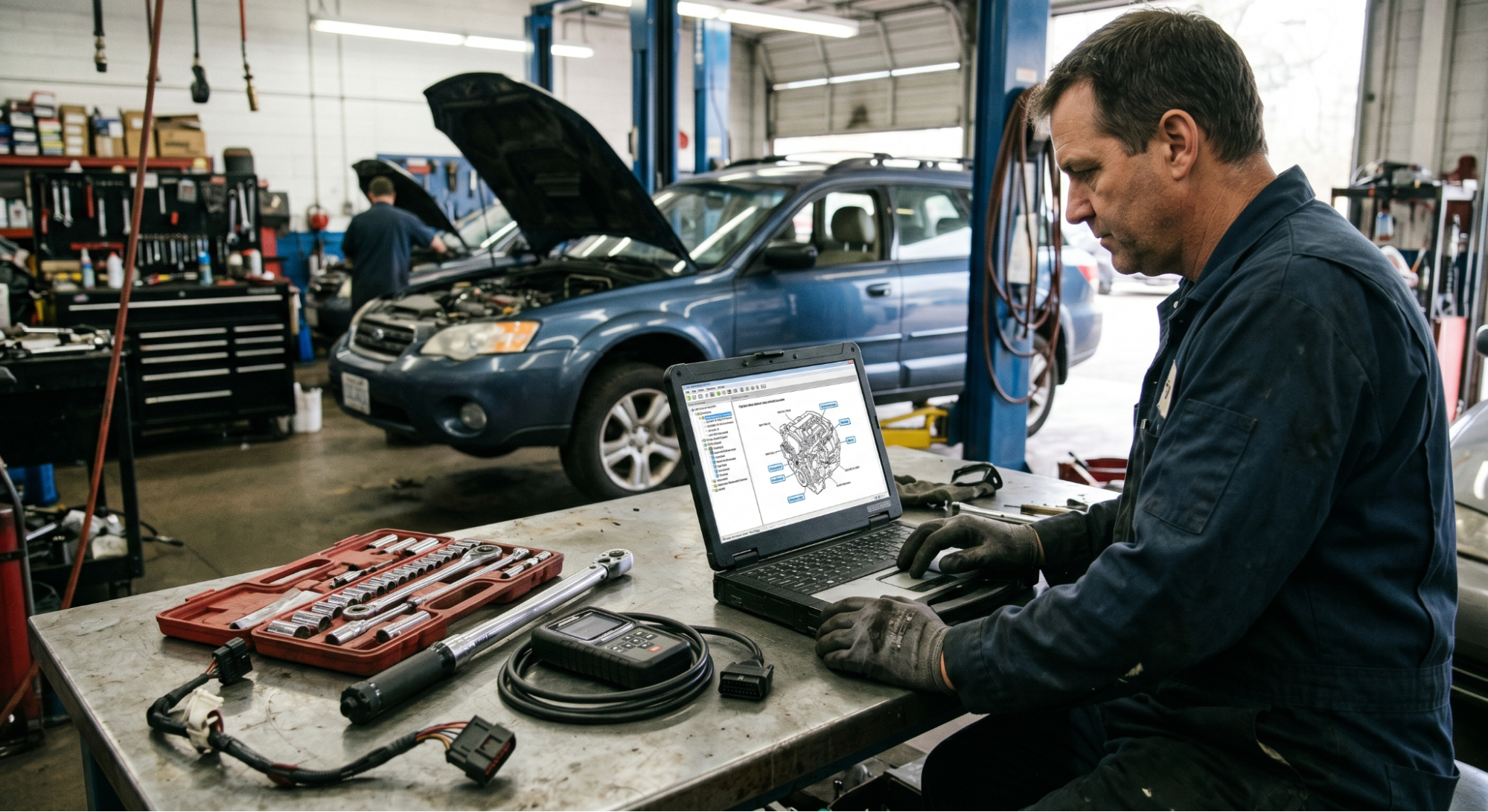
The most powerful and most underused feature in any interactive PDF workshop manual is the internal hyperlink network. These are live links embedded directly in the body text and wiring diagrams.
When a procedure references a torque value, a wiring diagram, or a component location diagram, a properly built interactive PDF makes that reference a clickable hyperlink. Tap it, and the manual takes you directly to that page.
Common hyperlink types in workshop manuals:
- Wiring diagram cross-references: clicking a component code on a wiring page jumps to the connector pin-out table
- Torque spec references: clicking a bold fastener name in a procedure jumps to the specification table
- Troubleshooting tree links: clickable decision nodes guide you through fault isolation step by step
- Index table links: the manual’s main index lists hyperlinked page references for every listed term
Not all downloadable PDFs preserve these links. Subscription-based OEM workshop manual platforms (such as Ford’s Motorcraft service portal) maintain full hyperlinking, while some third-party PDFs disable inactive links.
Knowing which format you have saves frustration before you start. For a deeper look at how PDF manuals compare to fully interactive repair software, see our guide on PDF Manuals vs Interactive Repair Software.
Step 5: Zoom Into Diagrams Using the Right View Settings
High-resolution wiring diagrams and exploded component views are only useful when you can actually read them. Using the wrong zoom setting turns a detailed diagram into an unreadable blur.
Modern interactive PDF workshop manuals embed diagrams as vector-based SVG images or high-resolution scans. The zoom behavior is different for each.
Zoom settings that work:
- For vector-based diagrams: zoom to 150–200% without any loss of quality lines and text stay perfectly sharp
- For scanned diagrams: zoom beyond 150% may introduce pixelation; use 125% as the maximum effective setting
- Use Ctrl+= (plus) to zoom in and Ctrl+- (minus) to zoom out in most PDF readers
- Press Ctrl+0 to reset to the default page view
- On mobile: pinch-to-zoom works on all major PDF apps and maintains image clarity on vector diagrams
Always zoom in on connector diagrams before referencing pin numbers. Misreading a connector layout causes costly diagnostic errors.
PDF Navigation Feature Comparison Table
|
Feature |
Active in OEM Subscription PDF |
Active in Downloaded Third-Party PDF |
|
Bookmark Panel |
Full multi-level |
Usually present |
|
Ctrl+F Search |
Yes (text-based) |
Yes (if text-based) |
|
Clickable TOC |
Yes |
Varies |
|
Internal Hyperlinks |
Fully active |
Often inactive |
|
Vector Zoom Quality |
High |
Varies by source |
|
Wiring Diagram Links |
Active |
Often broken |
Conclusion
Navigating interactive PDF workshop manuals is a skill that directly affects how fast and accurately you complete every repair job. The bookmark panel, Ctrl+F search, clickable table of contents, internal hyperlinks, and zoom controls are not optional features they are the core navigation system of every professional-grade interactive PDF manual.
Use them in the order outlined in this guide, and your diagnostic and repair time will drop significantly. If you’re still deciding which manual format fits your workflow, read our guide on How to Choose the Right Workshop Repair Manual for Your Vehicle.
And for seasonal maintenance procedures that pair well with manual access, check out our Car Maintenance Tips for Summer and Essential Car Maintenance Tips resources.
Mastering your PDF workshop manual is the first step to doing the job right, every time.
Frequently Asked Questions
Yes, and it works better than most people expect. Both iOS and Android devices come with built-in PDF viewers that support bookmarks, pinch-to-zoom, and basic page navigation.
For full hyperlink and search functionality on mobile, dedicated apps like Adobe Acrobat Reader (free) or PDF Expert (iOS) are far more capable than default viewers. The interactive features, especially clickable table-of-contents links and internal cross-references, work reliably on both platforms as long as the PDF is text-based rather than a scanned image.
For field technicians working on vehicles away from a computer, a tablet with a quality PDF app and the full workshop manual downloaded offline is the most practical setup available today.
This is one of the most common complaints from technicians using third-party downloaded PDF workshop manuals. The issue is almost always in how the PDF was converted or compressed during the download process.
When a publisher converts a subscription-based interactive manual into a downloadable PDF, the internal hyperlinks, especially wiring-diagram cross-references, are frequently stripped or left inactive to protect subscription service revenue.
The solution is to either use the official subscription platform (which preserves all linking) or rely on the bookmark panel and Ctrl+F search function as your primary navigation tools when hyperlinks are broken. Some third-party PDFs restore partial linking; always test the TOC links first to gauge how much interactivity is preserved.
The fastest method is using Ctrl+F with a compound search term. Instead of searching for “torque,” type the specific component name along with a unit such as “Nm” or “ft-lbs.”
For example, searching “cylinder head Nm” in a PDF reader will return only results that reference torque values for that component, cutting through hundreds of irrelevant hits.
Another reliable method is using the index table at the back of most PDF workshop manuals — torque specifications are usually indexed with hyperlinks pointing to the relevant page.
If the manual includes a dedicated specifications chapter, bookmark it immediately on first use for fast access throughout the repair.
Yes, once downloaded, a PDF workshop manual works completely offline on any device. This is one of the primary advantages of the PDF format over browser-based subscription platforms, which require a live internet connection.
Save the manual to your device’s local storage (not a cloud folder that requires syncing) to guarantee offline access in a workshop environment with poor connectivity. The interactive features, bookmarks, search, hyperlinks, and zoom all function locally without any internet dependency.
For large manuals exceeding 1 GB, ensure your device has adequate storage and that the PDF app you’re using is optimized for large files. Adobe Acrobat Reader handles large workshop manuals reliably on both desktop and mobile platforms.
Wiring diagrams often cause confusion, so navigate by component reference codes instead of scrolling visually. Use Ctrl+F to search these alphanumeric codes to find physical locations, connector details, and pin assignments.
In interactive PDFs, clicking a code acts as a hyperlink directly to the pin-out table. To avoid expensive errors, always zoom to at least 125% when reading wire colors or pin numbers. If links are inactive, the bookmark panel provides the fastest way to jump between diagrams and locations.